
EV Chronicles #64 - Polestar 3 Infotainment System and Controls

This analysis of the Polestar 3 SW is based on SW Version 1.4.12 as of late November 2025. I started to write this blog MONTHS ago and could just never get it finished. I almost just decided to delete it completely. Honestly, since I started to write this, there have been a few YouTube videos on this topic that probably do a much better job at giving you an overview of the Polestar 3 SW than I can do here in text form. So maybe the most useful aspect of this post is that I am providing you with some great links to YouTube videos that you should watch if this topic interests you.
For example, doing some more research this morning, I just found this one today and it is by far, the BEST video out there that I have found so far. The content creator "Cars with Steve" does a fantastic job going through all the many screens within the Polestar 3 infotainment system. I have also found a couple of other older videos from the Out of Spec Team that are informative for prospective Polestar 3 buyers:
This one (staring Kyle) covers just about all you need to know about the interior of the Polestar 3 and its Infotainment System and Controls:
This Out of Spec Dave (Kyle's father) has a more recent video from about April 2025:
Auto Focus did this review a year ago. Some changes are notable from his video to the current SW, but it is a great review overall.
For those of you crazy enough to WANT to keep reading my ramblings on this matter, I'll try to hit some of the highlights in what I write below. Seriously though, the videos linked above are really good.
Note that the highest spec Polestar 3 has ventilated seats with massaging built in. I didn't think the cost of this upgrade was justified, so I don't have that feature in my vehicle.
Let's start with the display and controls available to the driver around and on the Steering wheel. Just like most vehicles, the left stalk controls the turn signal, wiper settings, and high beams. The right stalk controls drive direction (D-N-R similar to a Tesla) as well as activates Cruise Control with Lane Centering functions while driving. A button on the end of this stalk puts the vehicle in PARK. The heads up display on the windshield is excellent. It shows current speed and displays various road signs such as speed limit signs which it has recently read. When a destination has been set in the navigation, turn indications will also show up in the heads up display as well.
The display centered behind the steering wheel is one of the most useful displays in the car in my opinion. It has 3 display modes:
Map / Directions (great when a passenger is doing something on the center console like changing the music, interacting with the map to find a POI, or just playing with any of the other displays or apps.
This is my favorite way to set this display and it can be seen in the image below.
3D Visualization of surrounding traffic
Minimalist - Speed when driving (below is that mode when parked)

Each of these modes shows basic information such as current speed, battery SOC, and information about lights, turn signals, wipers, and more. I have found these two videos that focus on this display to be very informative:
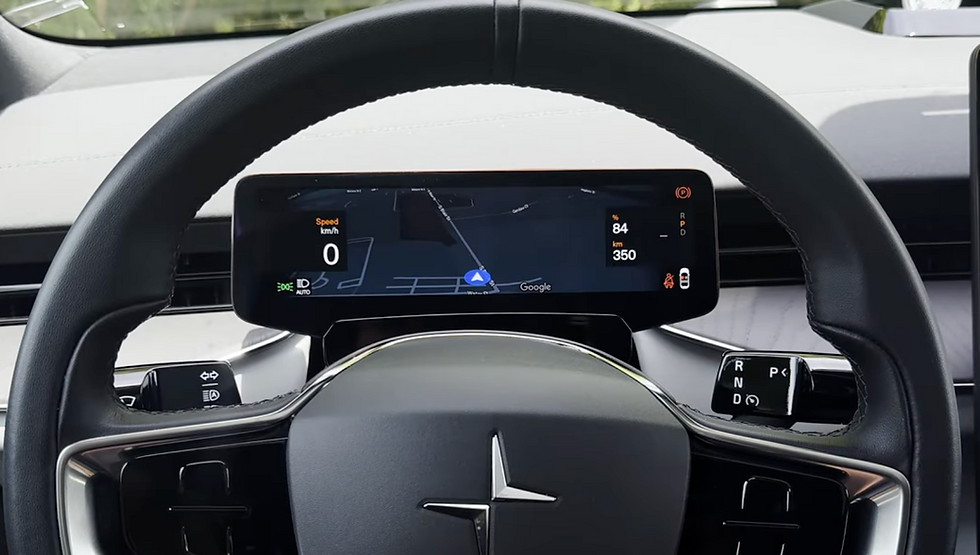
Finally, on the steering wheel, there are several buttons one each side of the spokes of the wheel that change functionality dynamically. While driving, the left buttons control cruise control speed and the right buttons activate the Google Assistant or changes the 3 display modes of the steering wheel display. When in Park and the vehicle settings menu has been selected, these buttons have been programed to move the steering wheel location or adjust the position of the side mirrors. I image future SW updates might introduce new button functionality. Being able to control the volume of the infotainment system and skipping over a song would be nice functionality to have from these buttons which has not been introduced as of writing this post.
As the driver enters the car, the main infotainment system boots up with the below main display as the starting point. This system is essentially an Android OS tablet on steroids. The top two thirds of the screen is the integrated Google Maps application which uses information from the car's Battery Management System (BMS) to help the driver plan out a long trip by suggesting charging stops if needed along the way. The next row just below the Google Maps window are two areas. On the left, is a small window with quick controls for the Audio in the vehicle. This is the fastest and easiest way to jump into the app that is the source of your current audio source. Spotify for me, or a podcast app or the FM radio might be others favorites. It remembers the sources of the Audio that was last selected when the car was last parked and a quick click on the play button on the screen or the audio control knob on the center console will start the music or your podcast from where you left off.. The right side of this area can be used to quickly access your phone connection settings or to make calls. The next row (second row from the bottom) has a collection of recently used apps and a set of controls that remain unchanged (performance and regen for example). The final row at the bottom remains unchanged at all times. You have the home button to return to this screen or to maximize the Google Maps window and the apps button on the left. In the middle section, there are controls to adjust the climate for the driver, overall climate settings for the vehicle, or climate settings for the front passenger. On the right is an icon to get to the overall vehicle settings and controls where settings for seats, mirrors, ride comfort and much more can be found, and finally the hazard button on the right.

Main Display
The next display that is likely going to be used most frequently by Polestar 3 owners is the HVAC controls. One click of the Fan Icon in the main display will open this detailed display. The driver and passenger can also quickly adjust the seat warmers and temperature settings by clicking either the seat icons above or the Temperature setting on either side of the fan icon above. I'll be honest, I set the HVAC to "Auto" and then rarely ever have to interface with this display. In this display, the driver can also control the HVAC schedule, or, when leaving the car for a short period in hot or cold weather, the vehicle can be set to hold the current temp settings for up to 45 minutes. Unfortunately, there is no long term "Dog Mode" or "Camp Mode". This is a nice feature that my Tesla also had. For example, I set the HVAC to be at 70F every morning before I depart for work in the summer (68F in the winter). It is my understanding that the time that I set is a "get to this temperature by" the time that I set. I haven't paid close attention to how long before this time the vehicle starts to warm up or cool down. I think it will start as much as 45 minutes before. I don't know if it is always 45 minutes before or if it computes how long it will need to get to the desired temp.

HVAC Control Panel
The last page in the infotainment system I wanted to talk about was the APPS screen. The display works very much like an Android Tablet. At time of delivery, the sales team walked me through completely setting up the vehicle correctly, getting my (google and Polestar) accounts logged in, getting my phone app to work, phone as a key, and all the technology settings. While driving the vehicle or parked, the Apps page is available. The vehicle comes with some basic apps installed but there are hundreds of other options that can be downloaded from the Google Play Store. This is where the driver could access other Apps like Waze, that the driver might prefer over the Google Maps application (I'll comment more about this below). All of the video Apps, like YouTube, can only be accessed while the car is parked for safety reasons.
I'll be honest, most of our road trips are under 300 miles in a day, and as such, our charging stops are rarely more than 10-15 minutes long, which isn't long enough to feel the need to watch anything in the car. On our longer trips (once or twice a year), our charging stops might be slightly longer, but the last thing I want to do is sit in the car to watch anything or play with apps. So what I am saying is that the ability to watch things on the screen or not is not really a thing for us. If this matters to any readers, I will say that the horizontal screen in the Tesla resulted in a much better viewing experience for video watching for sure.

CarPlay integration or other navigation Apps like Waze.
I'll admit that I have never been a huge fan of CarPlay in any car I have ever owned. It totally sucks in my wife's 2020 Mazda, and I have found that in the Tesla and in the Polestar, the native maps in both cars, and the music applications in both (mostly a Spotify user) are superior to anything I could do via CarPlay. This is particularly because ONLY the Google Maps application in the Polestar (same in Tesla) has access to the vehicle's current State of Charge (SOC) level, and as such, trip planning is best done with the in car navigation Application. All other applications won't compute recommended charging stops. I often drive with WAZE running on my phone next to the Google Maps application. Google Maps now displays alerts about road conditions, police, and hazards on the road from various sources including alerts from Waze users. It is rare that WAZE has a hidden police notice that doesn't also show up in the Google Maps application. I have played with CarPlay in the Polestar a couple of times and I would generally say it is well done and might be great for local drives where planning charging stops is not required. I should note that CarPlay was not natively available in the Tesla but I think there were some aftermarket solutions that would enable it. I never really missed it honestly.
The above covers the major items that most people will deal with daily. Here are few other items I am not sure how to discuss so I am just going to throw these out in a list:
The Bowers and Wilkins sound system is AMAZING. Very worth the extra cost.
The Window controls are idiotic. There is one up/down button for the left side and one for the right side of the car, and a third switch to toggle between those switches working the front or the back windows.
The seats are very comfortable with a ton of adjustment, but adjustment is through a single button that isn't exactly intuitive to use. Thankfully I never adjust my seat so.... no biggie, but could they have just spent like $5 on a separate lumbar control button?
Comments